
Blog › Guides
Guides
How to Speed Up a Slow Computer
By Tech Gate Computers · August 1, 2026 · 4 min read
A sluggish computer is one of the most common problems we see – and the good news is that it is usually fixable, often without spending much. Before you replace the machine, work through these steps in order. They go from free and easy to the upgrades that actually make an old computer feel new.
Start with what is running at startup
Every program that launches with Windows competes for resources before you even open a browser. On Windows, press Ctrl + Shift + Esc to open Task Manager and look at the Startup tab. Disable anything you do not need immediately at login – updaters, chat apps, game launchers and printer utilities are the usual offenders. This alone often cuts boot time noticeably.
While you are in Task Manager, sort the Processes tab by CPU, then by Memory, and see what is consuming the machine when it feels slow. That tells you whether you have a software problem or a hardware limit.
Remove software you no longer use
Old toolbars, trial antivirus programs and duplicate “PC cleaner” tools do real damage to performance. Two security programs running at once is a classic cause of a slow machine, because each scans what the other is doing. Keep one, remove the rest.
Be sceptical of any tool that promises to make your PC faster for a subscription fee. Many are the cause rather than the cure.
Check for malware – especially if the slowdown was sudden
If your computer was fine last month and is crawling now, and you are seeing pop-ups, new browser tabs, a changed search engine or fans spinning while idle, treat it as a possible infection. Modern threats often use your machine quietly in the background, which shows up as heat, noise and lag.
Run a full scan with your existing security software rather than a quick scan. If anything is found – or if the behaviour continues after cleaning – get it looked at properly, because leftovers commonly reinstall themselves. See virus and malware removal.
Free up drive space
A drive that is almost completely full slows the whole system, because the operating system needs working room for temporary files, updates and virtual memory. Aim to keep at least 15–20% of the drive free. Empty the recycle bin, clear browser caches, remove old downloads, and move large photo and video libraries to an external drive or the cloud.
The upgrade that actually transforms an old computer: an SSD
If your computer still has a mechanical hard drive, this is the fix. A solid-state drive has no moving parts and reads data dramatically faster, which is exactly what boot times, app launches and file browsing depend on. It is routinely the difference between a five-year-old machine that feels unusable and one that feels close to new.
We can clone your existing installation across so your files, programs and settings stay exactly as they are – you keep your setup, it just gets fast.
Add memory if you actually run out of it
RAM helps when you genuinely run out of it – lots of browser tabs, big spreadsheets, photo or video editing, or several programs at once. If Task Manager shows memory sitting near 100% while you work, more RAM will help. If memory use is low and the machine is still slow, more RAM will not fix it, and an SSD probably will.
Do not forget heat and dust
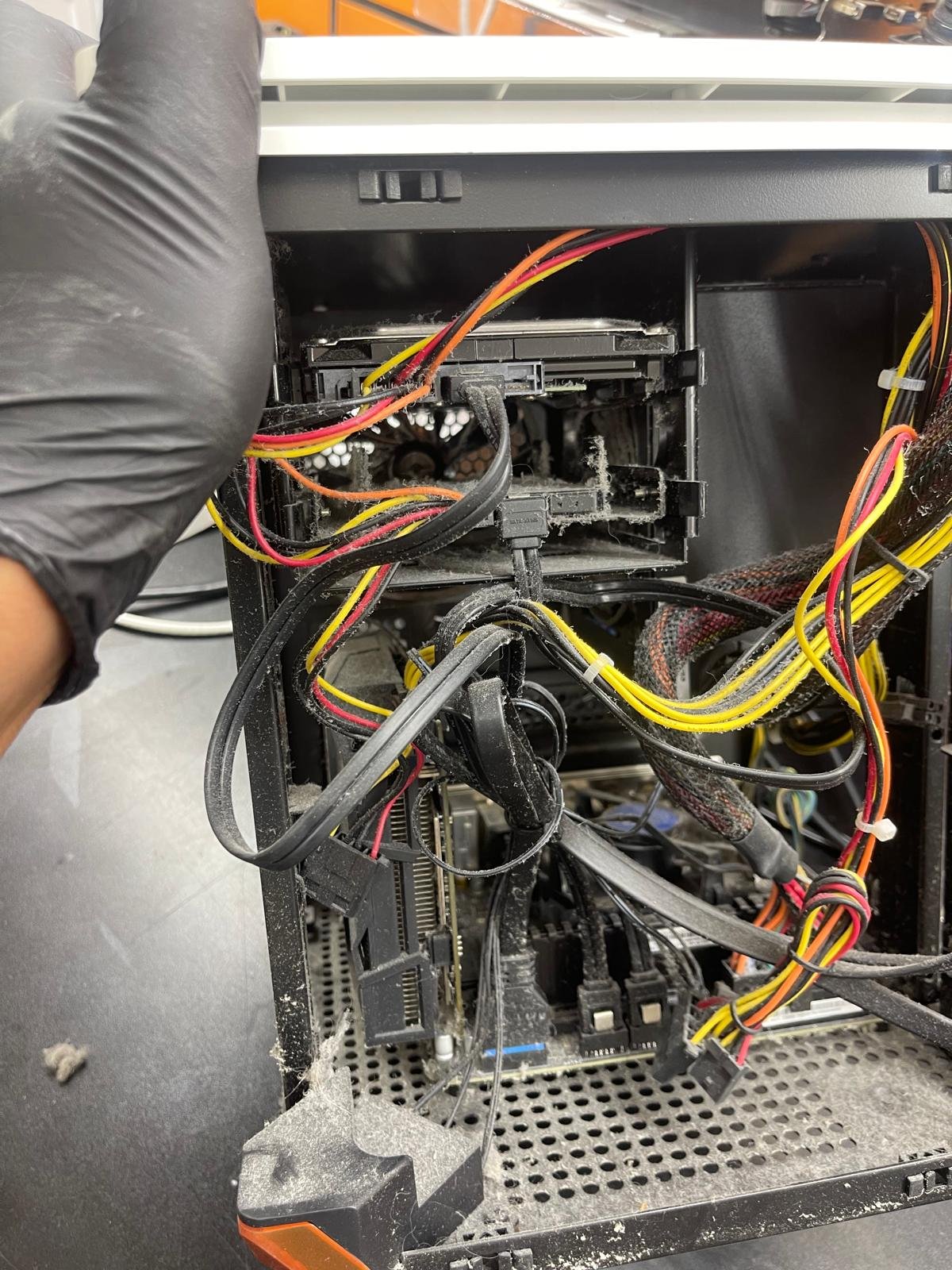
A computer full of dust cannot cool itself, and a hot processor deliberately slows down to protect itself. If the fans are loud, the case vents are furry, or the machine gets hot then sluggish after a while, it needs a physical clean and fresh thermal paste – not a software fix.
When it is worth bringing in
Come and see us if the machine is still slow after the steps above, if it freezes or restarts on its own, if you hear clicking or grinding from the drive, or if you would simply rather not open it up yourself. Diagnostics are free, we will tell you the real bottleneck rather than guessing, and there is no charge for the repair if we cannot solve it.
Still crawling? Bring it to our Windsor shop for a free diagnosis – we will find the actual bottleneck instead of guessing.
Computer repair in Windsor · Call 226-260-5509 · Book a drop-off
Get started
Ready to get your device fixed?
Book a drop-off in under a minute, or check your repair status any time — free diagnostics, no-fix no-fee, and a 90-day warranty.


Leave A Comment