
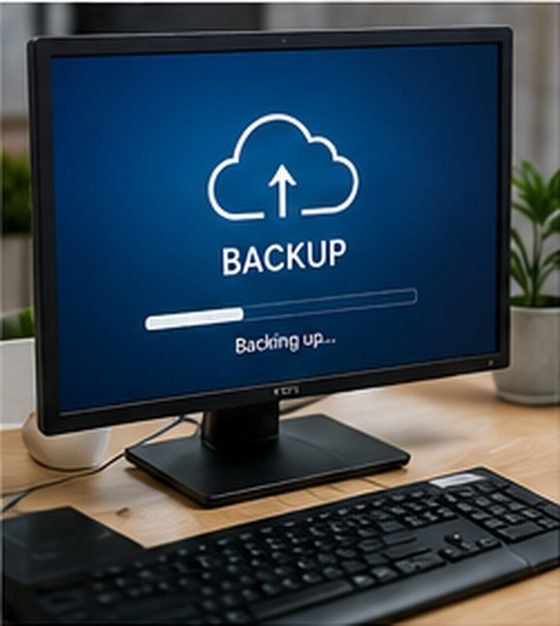
Blog › Guides
Guides
How Often Should You Back Up Your Data?
By Tech Gate Computers · August 1, 2026 · 3 min read
Ask anyone who has lost years of photos to a dead hard drive and they will tell you the same thing: back up sooner, not later. But how often is often enough – and what actually counts as a backup? Here is the practical version.
How often: match it to what you can afford to lose
The honest way to answer this is to ask how much work you are willing to redo. Whatever that number is, that is your backup interval.
- Home users with photos and documents: an automatic daily backup is the sweet spot. You will never lose more than a day.
- Anyone working from home or self-employed: daily automatic, plus a manual copy after anything important – tax records, a finished project, a big photo import.
- Businesses: daily at minimum, and for live systems such as accounting or booking data, more often than that.
The word that matters most is automatic. Manual backups fail because people get busy. A backup that depends on you remembering is not a backup plan, it is a hope.
The 3-2-1 rule
It is the standard for a reason:
- 3 copies of your data (the original plus two backups)
- 2 different types of storage (for example an external drive and the cloud)
- 1 copy off-site – somewhere that is not your house
That last point is the one people skip. An external drive sitting beside the computer protects you from drive failure, but not from theft, fire or flooding. Cloud storage covers the off-site copy quietly in the background.
What does not count as a backup
These get mistaken for backups regularly:
- A second folder or partition on the same drive. If the drive dies, both copies die.
- File sync on its own. Sync services are excellent, but they copy your mistakes too – delete or encrypt a file and the change syncs everywhere. Use versioning or a separate backup alongside it.
- A drive that is always plugged in. Convenient, but ransomware encrypts attached drives along with the computer.
- An old backup you have never tested. A backup you have not restored from is an assumption.
Test the restore – not just the backup
Once every few months, actually retrieve a file from your backup and open it. This is the single most skipped step, and it is the one that determines whether your backup is real. Plenty of people discover the job had been silently failing for a year at exactly the moment they needed it.
Do not forget your phone
For most people the phone holds the photos that would hurt most to lose. Make sure iCloud or Google Photos backup is actually switched on and not paused because the free storage filled up months ago – that is extremely common.
If your drive has already failed
If files are missing, the drive is not detected, or you can hear clicking or grinding, stop using the device immediately. Continuing to run a failing drive, or running repair utilities on it, can turn a recoverable situation into a permanent loss. Power it down and bring it in – see data recovery.
We set up reliable automatic backups for homes and Windsor businesses – and if disaster has already struck, we can often get your files back.
Backup & recovery services · Call 226-260-5509 · Book a drop-off
Get started
Ready to get your device fixed?
Book a drop-off in under a minute, or check your repair status any time — free diagnostics, no-fix no-fee, and a 90-day warranty.






Leave A Comment