
Blog › Gaming
Gaming
Is Your Gaming PC Underperforming? Here Is Why
By Tech Gate Computers · August 1, 2026 · 3 min read
Frame rates dropping, stutters mid-match, or fans screaming under load? A gaming PC that has lost its edge almost always has a fixable cause – and it is usually not a dead machine or a required full rebuild. Here is how to work out what is actually holding yours back.
Heat is the number one culprit
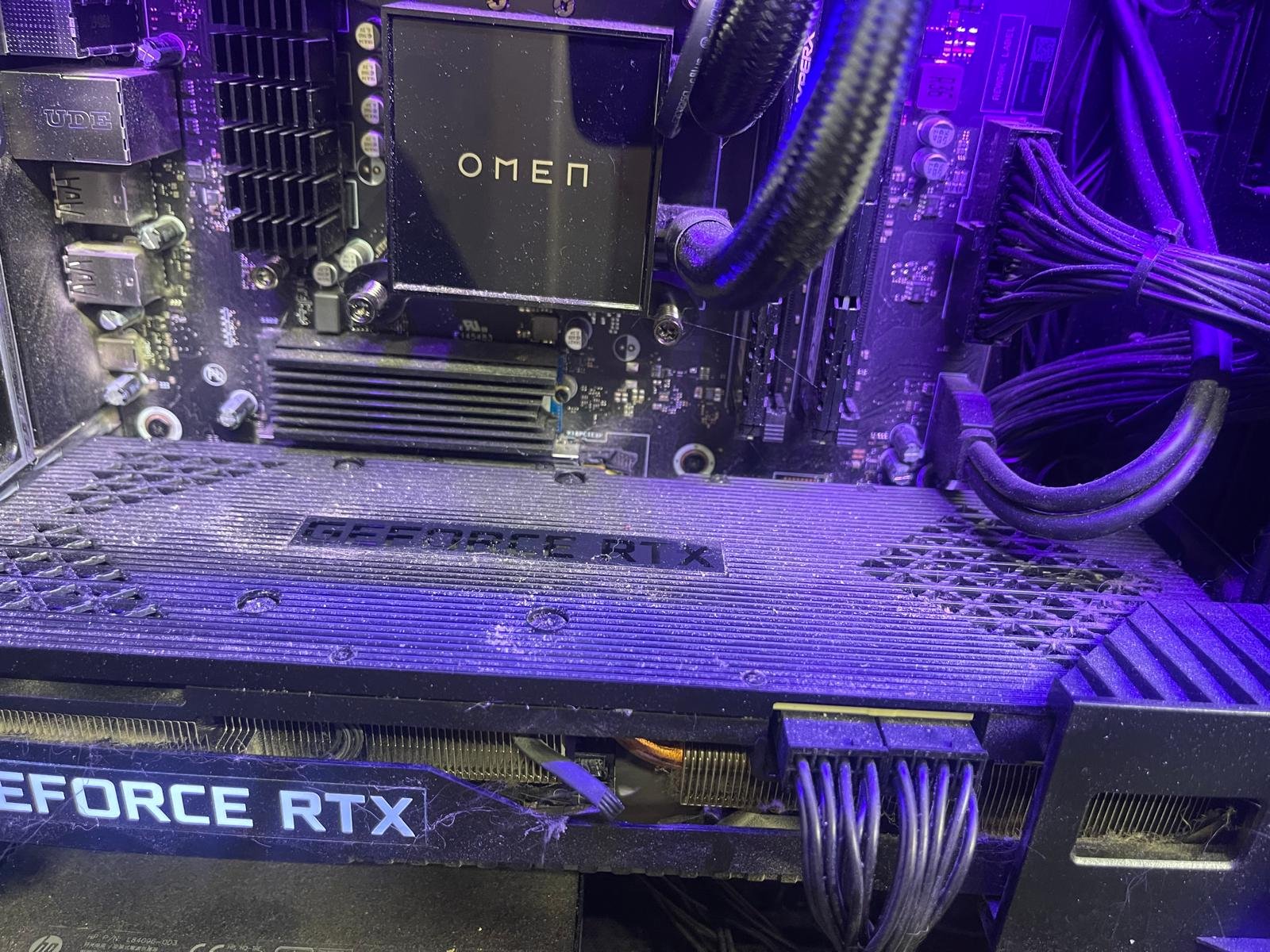
If your PC runs fine for the first ten minutes and then frame rates fall off, that is thermal throttling. Dust clogs the filters, fans and heatsink fins, and the thermal paste between the processor and cooler dries out over a few years. When temperatures climb, the CPU and GPU deliberately reduce their speed to protect themselves.
Symptoms to watch for: loud fans that never settle, hot exhaust air, sudden frame drops after a while in game, or shutdowns under heavy load. A thorough clean, new thermal paste and better case airflow often recover a surprising amount of lost performance.
Check whether the GPU or the CPU is the limit
Open Task Manager or your GPU software and watch usage while gaming. If the GPU sits near 95–100%, the graphics card is the limit – that is normal, and lowering settings or upgrading the card is the answer. If the GPU is at 50–60% while a CPU core is pinned at 100%, the processor is the bottleneck and a new graphics card would be largely wasted money.
Knowing which one is the limit is the difference between an upgrade that transforms your experience and one that changes nothing.
Drivers and Windows settings
Update your graphics drivers from the manufacturer directly. Then check two settings people miss: make sure Windows is on a high-performance power plan rather than balanced or power-saving, and confirm the monitor is actually running at its full refresh rate in display settings. It is genuinely common for a 144Hz monitor to be sitting at 60Hz because nobody changed it.
If you have onboard graphics as well as a dedicated card, check that games are using the dedicated card – and that your monitor is plugged into the graphics card, not the motherboard.
Storage and memory
A drive that is nearly full slows everything, and games installed on an old mechanical drive load slowly and can stutter as they stream assets. Moving your main titles to an SSD makes a clear difference to load times and texture pop-in.
Memory matters too: modern titles are comfortable with 16GB, and if you stream or keep a browser open while playing you will feel the difference. Check that your memory is actually running at its rated speed – a lot of systems run slower than the RAM is capable of because the profile was never enabled in the BIOS.
The power supply nobody suspects
If your PC restarts or shuts down specifically during demanding scenes, suspect the power supply before the graphics card. An ageing or underpowered unit can be perfectly stable at the desktop and fail under load. This is also the component people most often skimp on when upgrading a graphics card.
Background software
Overlays, launchers, chat apps, capture software, browser tabs and “optimiser” tools all take resources. Close what you do not need before playing. If several security programs are installed at once, remove all but one – they fight each other and cost real performance.
Upgrade, repair or rebuild?
Often a clean, a repaste and one well-chosen upgrade is all a rig needs. If the platform is genuinely old and every part would need replacing to keep up, a fresh build makes more sense – and we can reuse whatever is still worth keeping. See custom gaming PC builds if you would rather start fresh.
Want it diagnosed properly rather than guessing? We tune Windsor gaming rigs for stable, high-FPS performance.
Gaming PC repair & upgrades · Call 226-260-5509 · Book a drop-off
Get started
Ready to get your device fixed?
Book a drop-off in under a minute, or check your repair status any time — free diagnostics, no-fix no-fee, and a 90-day warranty.

Leave A Comment